Blog ala Vidar
SQL, AppFrame and other cool technologies
Windows 7
Posted by on January 11, 2009
About 24 hours ago I started installing Windows 7 Beta 1 (build 7000). First I tried upgrading my Vista installation. After about half an hour with extracting files etc, it stopped at 21%, wanted to reboot. After the reboot, it started at 21%. In the mean time I was playing drums on Guitar Hero World Tour. My neighbors HATE it. It doesn’t take more than two minutes before they start hammering on my door etc. Anyhow.. It still was at 21% so I went to bed. Haven’t slept much lately… When I woke up, it was still at 21%, so I decided to cancel the upgrade, and do a fresh install. Rollback worked perfectly, so I managed to get into my vista installation to copy out the files I “needed”.
Bug 1: upgrade didn’t work
Fresh install didn’t take long. Immediately after it was finished, I started installing all my usual applications. MSN, Visual Studio, SQL Server +++. The only thing I have had problems with so far is daemon tools and similar applications. For those of you that are not familiar with this, it’s a tool to mount ISO-files like a virtual CD/DVD-ROM. After a while I found one that works pretty good: Virtual CloneDrive. If you got any other program to do this, which is FREE (as in free of charge, don’t care if it’s open source or not), and does ONLY mount files, not all the other bullshit like Nero etc, please let me know…
After installing everything I needed, I started exploring the new features. There’s actually some very nice features, but we’ll get back too them soon. I first want to notify you about the other bugs I’ve found.
Bug 2: problems with restarting
After windows update, windows wanted a restart. I pressed “restart” and went over to my mom to have dinner etc. 6 hours later I came back home and noticed the “shutting down” screen. I of course used the power button, and restarted it again. The same thing happened the next restart. Although, I didn’t have this problem the last restart. Have no idea why though. I haven’t started looking at logs yet.
Bug 3: windows explorer stops working
Have no idea what happened, but suddenly windows explorer couldn’t find any of my hard disks. I tried killing explorer.exe and starting it again, without success. I’ve had this problem in XP before, but then it normally works fine after killing it. Restarting worked though, as always 😉
These are the “only” bugs I’ve found so far. I’m a multitask-dude, so I always install several programs at the same time, while doing hundreds of other thing. Windows 7 seems to have no problem with this. I’ve had various problems with this in both XP and Vista.
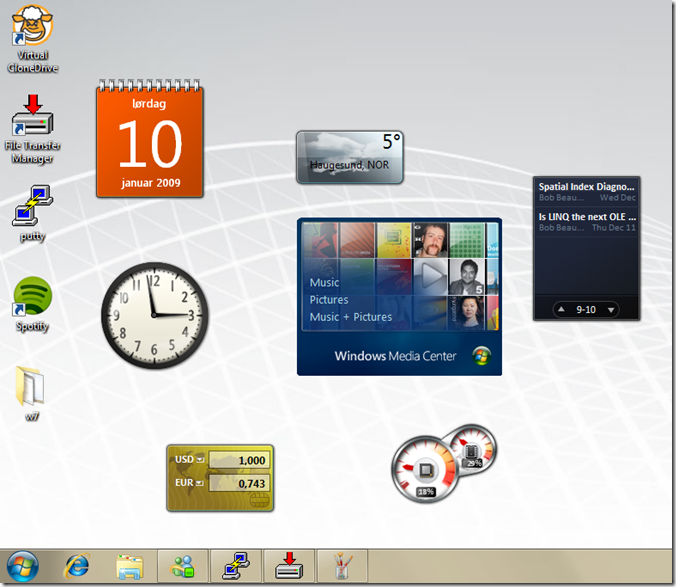
So, over to the new features. Most of your are probably familiar with “gadgets” in Vista. In Windows 7 you still got gadgets but they’re not locked to the sidebar. You can drop them wherever you want on the screen (as shown on the screenshot). This is of course just to show you. I normally don’t use any gadgets 🙂
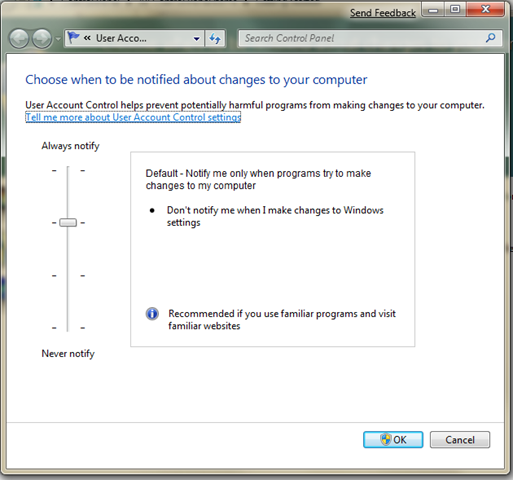
UAC (User Account Control) is something that have annoyed many people in Vista. I think UAC is a good idea, but it should warn you about things that really matter, and not EVERYTHING you do. I myself have set it to the “Shut up and let me do what ever I want because I (think I) know what I’m doing“-mode. In Vista there was only on and off, but in Windows 7 there’s 4 settings.
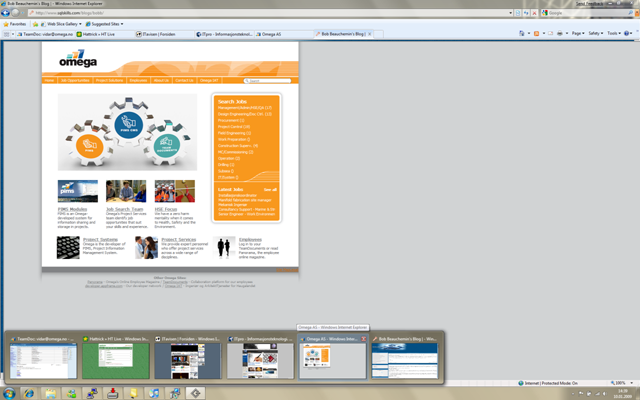
One of the features I’m a big fan of is the new taskbar. Instead of having a taskbar just for opening applications, you can now hover for example the IE-icon, and then get a preview of all your tabs. If you click any of them it opens IE in the correct tab. This also includes all other applications. By using the right-click option “pin this program to taskbar”, you can add applications to it. I’ve pinned putty (which is a SSH-client). If I click it, and the application isn’t opened, it will start it. Pretty neat, especially with the preview functionality.
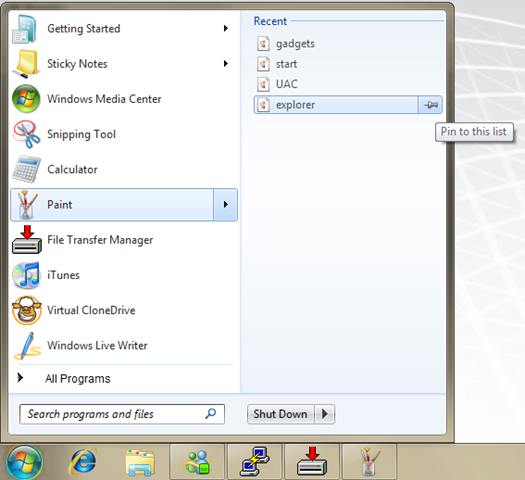
You also got this “pin” functionality in the start menu. Nice if there’s for example documents you need to add to some kind of favorite list or similar.
Another cool feature is the window management. If you’ve got several windows open, and you “shake” one of them, it will minimize all other windows. If you shake it ones more, it will restore the other windows. You can also dock windows by just moving them around. If you move the window to the left of your screen, it docks the window to 50% of the left. If you move it to the top of your screen, it maximizes it.
This is the biggest changes I’ve seen compared to Vista. There’s also a lot of small changes, like the action center which notifies you if there’s something wrong. For instance before I installed an antivirus application, it said I had to do it. It doesn’t popup and it isn’t annoying in any way. It’s just a red flag waiting to be clicked on.
They’ve also included “Send feedback” on all windows. This automatically connects to http://connect.microsoft.com and reports issues by itself.
The how’s and why’s about indexes
Posted by on December 19, 2008
Indexes is a big topic when it comes to SQL Server. I’m going to try to tell you the most basics about it. Hopefully this will help you figure out when and why you should use indexes. First, lets start with the real basics!
Go get some candy, coke and coffee. This will probably be the longest blog I’ve done so far. BUT PLEASE KEEP READING! In SQL Server you’ve got tables which stores data. In my example I have a table called Persons. This will have 5 records. In management studio there’s a VERY NICE FEATURE called “Include Actual Execution Plan”. I’ll use this to show you.
USE tempdb

CREATE TABLE Persons (
	PersonID VARCHAR(8) NOT NULL,
	FirstName VARCHAR(50) NOT NULL,
	LastName VARCHAR(50) NOT NULL,
	EMail VARCHAR(100) NULL,
	ReverseEMail AS REVERSE(Email)
)

INSERT INTO Persons
  (PersonID, FirstName, LastName, Email)
VALUES
  ('StolJens', 'Jens', 'Stoltenberg', 'jens@stortinget.no'),
  ('SolbErna', 'Erna', 'Solberg', 'erna@stortinget.no'),
  ('JensSiv', 'Siv', 'Jensen', 'siv@stortinget.no'),
  ('SponLars', 'Lars' ,'Sponheim', 'lars@stortinget.no'),
  ('NordVida', 'Vidar', 'Nordnes', 'vidar@omega.no')
If I now do a SELECT * FROM Persons, everyone knows the results, but here’s the execution plan:
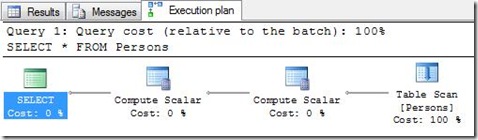
As you see, it’s doing a Table Scan which takes 100% of the cost of this query. A table scan is literally a scan through the whole (or in some cases, parts) of the table. The compute scalar items are there because I’ve got a computed column (ReverseEMail) in my table. We’ll get back to this later.
A table scan is in most cases VERY inefficient, because it has to go through all records with data. If this table had 100.000 records, it would have to go through 20MB of data (8+50+50+100 * 100.000 bytes). Of course, when doing a SELECT * from a table without a where clause, there is no other way than scan the whole table, because you need all data to be returned anyways.
There’s two kinds of indexes in SQL Server. Clustered and non-clustered. Non-clustered is in some ways a table for the table which only stores the values for the indexes columns. In the index there’s also added a rowid field which points to the correct record in the actual table. This way, when seeking the index, it can point you to the correct row in the table after it’s finished seeking. In 2005 you can have up to 249 non-clustered indexes, but in 2008 you can have up to 999! But before you start creating 999 indexes, be aware that indexes also contains data! If you index a column that is a integer, which is 4 bytes, it will be 4 bytes in the table and 4 bytes in the index PER RECORD. So, if you add 999 indexes, this will be 4 * 1000, which is 4000 bytes PER RECORD.
The other type of index is a clustered index. This is the physical (or actually logical, but just think of it as the physical) ordering on the harddisk. So, for instance when I add a clustered index on the PersonID field, it will order the table based on the PersonID field. The clustered index will have the other fields as datapages in the index, but the indexed field (PersonID) will be on the leaf node. I’m not going in to details about this, but if you’re interested, have a look at the definition of a B-tree. Anyhow.. Since the clustered index is the physical ordering of the actual values, so therefore a table can only have ONE clustered index. NB! If you have a clustered index on a table, you’ll never get a Table Scan. You’ll get a Clustered Index Scan, which is the same.
If we think of a table as a book, we’ve got the clustered index in front (Table of contents) of the book, having a sorted list (by chapters 1, 2, 3) of the content with pointers to the actual data (the page of the book). At the end of the book, you’ll find the non-clustered index. This is a index on the “word” field in our table. The word is sorted ascending with a pointer to the page, so the word “Assembly” might be found in pages 15, 19 and 333, and the word “Binary” might be found at page 16.
So, now we’re adding a clustered index to the PersonID field, and a non-clustered on the LastName column. This makes searching on LastName faster for the server, because instead of using a table scan (or clustered index scan), it can use the index to look up the values.
ALTER TABLE Persons
	ADD CONSTRAINT PK_Persons
	PRIMARY KEY CLUSTERED (PersonID)

CREATE NONCLUSTERED INDEX IX_Persons_LastName ON Persons (LastName)

SELECT PersonID
	FROM Persons
	WHERE LastName LIKE 'S%'
Before taking a look at the execution plan for the select statement, let’s guess what it will do. First it will look at the Persons table to see if there’s any indexes on LastName. There is (IX_Persons_LastName). It will seek this for ‘S%’ and then do a lookup to the clustered index to get the PersonID.
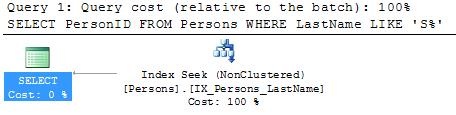
TRICKED YOU! 😀 It’s only using a Index Seek on IX_Persons_LastName. But, where does it get the value of PersonID? From IX_Persons_LastName, of course. The reason is that if you have a table with no clustered index, it will add a RowID field to the table, and use this in all non-clustered indexes to keep them “in sync”. But, if you do have a clustered index, it will use this field (PersonID) as the RowID. That’s why it’s only using the non-clustered index.
Now, let’s do another query:
SELECT PersonID
	FROM Persons
	WHERE LastName LIKE '%berg'
We’re only getting the PersonIDs for those that have a LastName ending with “berg”. If we look at the execution plan, we’ll see that now it’s using a Index Scan, instead of an Index Seek
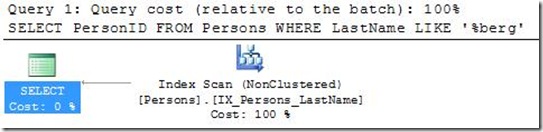
Index scan is just as bad as a table scan. It has to search the whole index to find the records it’s looking for. Let’s take the book as an example again. Find a book, go to the index in the back of the book and try to find all words ending with “ing”. If your book of choice is a computer book, you’ll eventually find at least “designing”, “hacking” and “implementing”. This will take some time. If you then try to find all words starting with C, you know where to start, and where to end. You know that you have to start after the last word that starts with B, and you know you have to stop when you hit D. This is the difference between a seek and a scan. But, what if you often have to find things that ENDS with something? Do you always have to do a index scan? No. As you might remember, I added a field called ReverseEMail to the table AS REVERSE(Email). This is a computed, not persisted field. This means it’s computed on the fly, and therefore not stored to the actual database. If we add an index to this field:
CREATE NONCLUSTERED INDEX IX_Persons_ReversedEmail
	ON Persons (ReverseEMail) INCLUDE (FirstName)

SELECT FirstName
	FROM Persons
	WHERE ReverseEmail LIKE REVERSE('%stortinget.no')

SELECT LastName
	FROM Persons
	WHERE ReverseEmail LIKE REVERSE('%stortinget.no')

SELECT LastName
	FROM Persons WITH (INDEX(IX_Persons_ReversedEmail))
	WHERE ReverseEmail LIKE REVERSE('%stortinget.no')
Now let’s have a look at the execution plan again for these three select statements:
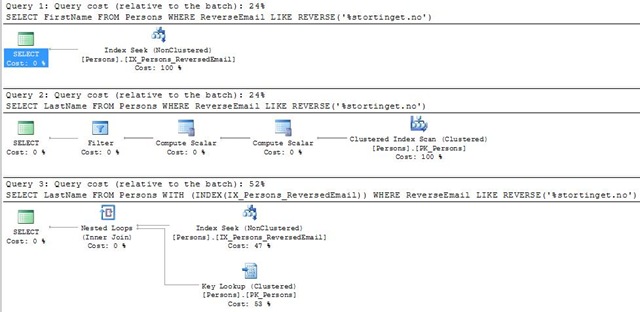
Notice when I’m creating the index I’m doing it on the ReverseEMail field, but I’m also including the FirstName. INCLUDE was introduced in SQL Server 2005. This means that it includes the data for this field in the datapage, but not in the leaf node. In other words, you can’t filter on it but you can select it out of it.
In the first query you see it’s only using a index seek on IX_Persons_ReversedEmail, because it’s got everything it needs in that index. In the second query we select LastName instead of FirstName, which is NOT included in the index. Then the query optimizer figures out it’s faster to do a clustered index scan instead of using the index we created, because it needs to go in to this anyways to get the LastName. If we had more records it would probably not do this clustered index scan. In the third query I’ve used a table hint where I’m forcing query optimizer to use the index I created. Then it’s doing a Index Seek on the ReverseEmail field, and then doing a key lookup per record to the clustered index. As you see from the Query cost (relative to the batch) this is 52%, compared to 24% for the others. That means that even though you might think it’s quicker to use the index we just created, it’s actually not. Be aware, although all reasonable logics says that you’re correct, SQL Server might take an alternative route. When you execute a query, it uses a couple of milliseconds to calculates the best way to execute this query. If your statistics are up to date (I might write a post about statistics later), it’s very likely that SQL Server will be better than you to pick indexes to use 😉 So, keep your statistics updated and do not mess with table hints unless you really know what you’re doing! If you are interested, I’ll write a post about statistics, and one more detailed about execution plans. Please let me know!
So, to our conclusion. SQL Server IS smarter than you when it comes to picking the best execution plan. GET USED TO IT! 🙂 Create indexes on fields that are often used for filtering. If you use GROUP BY or ORDER BY, you should consider adding a clustered index to that (or those) field(s).
Marry Christmas everyone!
SQL Server 2005 SP3
Posted by on December 17, 2008
Regular expressions
Posted by on December 16, 2008
I just had a list of 300 SPs that I wanted to check against sys.sysobjects to see which existed and which didn’t. To do this, I need an IN with the list of all my SPs, and I have to add ‘ at the start of the strings and ‘, (apostrophe and comma) at the end of the strings. Instead of doing this manually, which would take ages, and probably cause my arms to tear off my body, I did the following. ctrl + h (search and replace).
In the “Find what:” I added: ^sstp.*
In “Replace with:” I added: ‘’,
Then, tick of the “Use” regular expressions, and do a replace all 🙂 Saved me A LOT of work!
SQLXML
Posted by on December 16, 2008
Ever tried working with XML in SQL Server? Some find it very difficult. I find it.. Interesting? I’m not sure. My opinion is that if possible, stay away from XML, but if you need to use it, here’s some quick starter tips:
USE tempdb;

IF EXISTS (SELECT *
		FROM sys.sysobjects
		WHERE name = 'xmltest1')
	DROP TABLE xmltest1

CREATE TABLE xmltest1 (
	ID INT,
	Name NVARCHAR(200)
)

INSERT INTO xmltest1
  (ID, Name)
VALUES
  (1, 'Jens Stoltenberg'),
  (2, 'Erna Solberg'),
  (3, 'Siv Jensen'),
  (4, 'Lars Sponheim')

SELECT *
	FROM xmltest1
	FOR XML AUTO

SELECT *
	FROM xmltest1
	FOR XML AUTO, ELEMENTS

DECLARE @MyXML AS XML
SET @MyXML = (SELECT *
		FROM xmltest1
		FOR XML PATH('Politician'), ROOT('Politicians'))

SELECT @MyXML
/*
<Politicians>
  <Politician>
    <ID>1</ID>
    <Name>Jens Stoltenberg</Name>
  </Politician>
  <Politician>
    <ID>2</ID>
    <Name>Erna Solberg</Name>
  </Politician>
  <Politician>
    <ID>3</ID>
    <Name>Siv Jensen</Name>
  </Politician>
  <Politician>
    <ID>4</ID>
    <Name>Lars Sponheim</Name>
  </Politician>
</Politicians>
*/

DECLARE @docHandle AS INTEGER
EXEC sp_xml_preparedocument @docHandle OUTPUT, @MyXML

SELECT *
	FROM OPENXML(@docHandle, N'/Politicians/Politician')
	WITH (ID INTEGER 'ID', Name NVARCHAR(200) 'Name')

SELECT @MyXML.query('/Politicians/Politician/Name')

/* Clean up*/
EXEC sp_xml_removedocument @docHandle
DROP TABLE xmltest1
I’m creating a test-table with two columns, and adding some records. These are well known Norwegian politicians. If you run this script, you’ll see it will return 5 record sets. The first one is from FOR XML AUTO. This means it will have one element pr record, with attributes for each field. The next one (FOR XML AUTO, ELEMENTS) will return one element pr record, with child elements for each field. The third (SELECT @MyXML) will have one root element, Politicians, with one element (Politician) pr record, and child elements for each field, as shown in the comments.
The fourth is using OPENXML instead of FOR XML. This means I have to “prepare” a document for the SQL server. I’m adding it, and getting back an ID to that document (using @docHandle). With this I’m querying the XML, to get SQL results, so the fourth is actually the same as running SELECT * FROM xmltest1. Be aware that I’m naming the fields. ID INTEGER ‘ID’. This means that it’s picking the ID element, and putting it in the ID field. For getting attributes, you’ll use @ID. For example ID INTEGER ‘@ID’. You can also query parent elements by doing ‘../ID’ or ‘../@ID’.
The last one is querying the @MyXML variable. Here I’m getting a XML based on @MyXML. I only get the Name elements.
NB!!! I’m using INSERT with multiple values. This is only supported by SQL Server 2008. The rest is supported by both 2005 and 2008.
EASY SECURITY ACTIONS
Posted by on December 6, 2008
I should probably call this FREE PORN. That way everyone would have read it, but anyways.. Although this is a bit of a boring subject, this will only take two minutes, and it can save you many hours afterwards! The topic is security. I’ve gathered some security actions after watching a couple of TechEd Sessions from Steve Riley about Security. All my bullet points are COST FREE as in no money spent, and almost no time spent implementing. Then, why don’t you already do it? I don’t care, but please start doing it.
CLIENTS
- Anti-malware
This includes virus, spyware, adware+++. Vista comes with Windows Defender, but AVG FREE is a good alternative. - Be skeptical!
Never give your password to ANYONE. This includes your administrator! If I really want/need (for testing purposes) to use your account, I can reset your password to something.
Never click on anything that you don’t know the results of. For example, lately I’ve gotten many links from a contact on MSN. Typically “Try this cool website: http://vidar.somehost.com”. I have of course changed the host so you won’t click on it 😉 The reason I got suspect was that this person is Norwegian. Why should she start a conversation with an English sentence and a link? And why is she offline? She’s clicked on one of those links herself, added her msn address and password to the site, and there you go. This also goes to e-mails. If for some reason spam gets through our very tough spam-filter, be skeptical! For the record, I’ve blocked this person from MSN. When she’s stopped clicking on stupid links, I’ll unblock her. - Do not run as administrator
Most common applications does not have any problems running as normal user - Ensure Microsoft update is running frequently
- Firewall
Both XP and Vista comes with built-in firewalls. DO NOT DISABLE THEM! If you’ve got apple, throw it in the garbage and buy a real computer. - Lock your computer when you leave it
THIS COST YOU about 14 calories, but believe me, you want to loose these 14 calories. Have you ever thought about how easy it is to for example go in to the Omega HQ office at for example lunch time, go in to an empty office and play with your computer? Many of you leave your computer when you’re logged on to MarketMaker, logged in with management studio to our SQL Servers and maybe remote desktop. Now, use one minute to think about what the intruder could do, just because you want to save your 14 calories. This is the easiest security action to take, less time consuming and it’s totally cost free, and also, it’s the most efficient! - Uninstall unused applications
This will not only increase security, it will also increase your computers performance! - Use a good password
Your name is not a good password. Neither is the one you’ve used for 10 years. Use a passphrase and change it every now and then. For example: ILoveEasySecurityActions! It’s easy to remember, it’s secure because of the length, the use of lower and uppercase, and it’s got special signs (!).
SERVERS
- Anti-malware
For filestores - Firewall
All windows servers comes with built in firewalls. Leave them on, and also install a hardware firewall on your network to protect you. - Microsoft Update
- Reduse the amount of admins
The more people that have access, the more likely the server is to be exploited! - Uninstall unused applications
SQL Servers should NOT run ANYTHING ELSE than SQL Server. Same goes to web-servers, DNS servers etc!
Clearing the Server List
Posted by on November 28, 2008
You’ve probably created some test account on a SQL server, and then tried to log in using this account. It works, but now Management studio remembers this account NO MATTER WHAT you do. Even though you try to press delete, log in using your account and check of “Remember password”, it still remembers this test-account you’ve logged in with ONCE. Why?! Have no idea. This must be the most annoying thing in the whole wide world when you’re a DBA.
Delete (or rename) this file: %APPDATA%\Microsoft\Microsoft SQL Server\100\Tools\Shell\SqlStudio.bin
For 2005 it’s using this file: %APPDATA%\Microsoft\Microsoft SQL Server\90\Tools\Shell\mru.dat
Thank you Aleksandr N 🙂
Windows PowerShell
Posted by on November 12, 2008
I like calling it POWAH shell. The reason is simple. It’s (almost) everything I miss from my good old Linux-days. When I first started managing windows servers, I couldn’t find anything. Same thing goes for Vista. When I first started using it, I couldn’t find any settings, because Microsoft has made it so user friendly. That’s great, till you’re for example trying to use wildcard-mapping in IIS7. THAT’S NOT EASY IN UI! It’s 5 lines of code in web.config, but it’s very hard to find in the UI.
So, what I’ve been missing is a real good console configuration tool, where you can do everything you want from console. Now I found it. After playing with it for a couple of hours, I’m convinced! This is POWAH shell!
A very cool thing about POWAH shell is that you’re working with .NET objects, and not "stupid" strings like in Linux. Of course, this works just fine, but here you can do basically the same things as you would have done in a .NET application. Let’s make an example. We want to know how much free space all disks on all our servers have. Without powershell, I have two ways of doing this. Either make an application for it, or log on remote desktop. With powershell you just do this:
foreach ($server in Get-Content "C:\powershell\servers.txt")
{
    $server;
    Get-WmiObject Win32_PerfFormattedData_PerfDisk_LogicalDisk -ComputerName $server |
        Where {$_.Name -ne "_Total"} |
        Select Name, PercentFreeSpace, FreeMegabytes |
        Format-Table
}
In c:\powershell\servers.txt I have added one line per server. This is 3 lines of code! Since I’m managing a total of about 15-20 servers, this saves me ALOT of work!
The result I get is:
MyServer
| Name | PercentFreeSpace | FreeMegabytes |
| C: | 83 | 116757 |
| D: | 96 | 270806 |
| E: | 99 | 139761 |
If I change the last “Format-Table” to “Format-List” I get this:
MyServer
| Name | C: |
| PercentFreeSpace | 83 |
| FreeMegabytes | 116757 |
| Name | D: |
| PercentFreeSpace | 96 |
| FreeMegabytes | 270806 |
| Name | E: |
| PercentFreeSpace | 99 |
| FreeMegabytes | 139761 |
I’m using the Win32 API to connect to the server, filtering where the name of the disk is Not Equal (-ne) to _Total (which is all disks combined) and then selecting the fields I want to output.
Another good example would be to check that our SQL servers are running the SQL services, and NO IIS. Same goes to our web servers. No SQL Services, but IIS should run. To do this, you can execute:
foreach ($server in Get-Content "C:\powershell\servers.txt")
{
    $server;
    Get-WmiObject win32_Service -ComputerName $server |
        Where {$_.name -eq "MSSQLSERVER"
            -or $_.Name -eq "SQLSERVERAGENT"
            -or $_.Name -eq "SQLBROWSER"
            -or $_.Name -eq "IISADMIN"} |
        Format-Table
}
This will return a table for each server, with the the services I’ve filtered on (MSSQLSERVER, SQLSERVERAGENT etc), the state and the status. If we want, we can add a pipe (|) and a Select so it only returns the columns we want.
The third script I’ve made is to check all SQL Servers Jobs, if any jobs failed last time they were executed:
[reflection.assembly]::LoadWithPartialName("Microsoft.SqlServer.Smo") | out-null

foreach ($srv in get-content "C:\powershell\servers.txt")
{
    $srv;
    $server = New-Object "Microsoft.SqlServer.Management.Smo.Server" "$srv"
    $server.JobServer.Jobs |
        Where {$_.LastRunOutcome -eq "Failed"
            -and $_.IsEnabled -eq $TRUE} |
        Format-Table Name, LastRunOutcome, LastRunDate -autosize
}
Notice, we’re “loading” the Microsoft.SqlServer.Smo assembly. This is a .NET assembly which we’re using later on. For each server we’re making a new object $server, and accessing the JobServer.Jobs, filtering where LastRunOutcome equals “Failed” and that it is Enabled.
You can also open a SQL connection, run SQL statements and handle the results in POWAH shell if you want. There’s almost no limits! There are still some things I’m missing, but I’m sure they’ll add it in the next versions. After all, this is only version 1! Good job Microsoft!
NULL?
Posted by on October 27, 2008
A couple of days ago Torgeir came over to my desk and told me proud “you shouldn’t use SELECT when setting variables. You should use SET”. Then he told me the reason, and it got me thinking.. The reason is simple. If you do this:
DECLARE @PrimKey AS UNIQUEIDENTIFIER
SELECT @PrimKey = PrimKey
	FROM stbl_WinClient_Projects
	WHERE ProjectName = 'Sys.Security.ManageUsers'
PRINT @PrimKey
SELECT @PrimKey = PrimKey
	FROM stbl_WinClient_Projects
	WHERE ProjectName = 'A.Project.That.Does.Not.Exist'
PRINT @PrimKey
Notice that it will return the same PrimKey both times. When you’re writing the query, you might think that this will give you NULL on the last SELECT, but it won’t because there’s no records returned, and it will therefore not touch the variable. The correct way of doing this would then be:
DECLARE @PrimKey AS UNIQUEIDENTIFIER
SET @PrimKey = (SELECT PrimKey
		FROM stbl_WinClient_Projects
		WHERE ProjectName = 'Sys.Security.ManageUsers')
PRINT @PrimKey
SET @PrimKey = (SELECT PrimKey
		FROM stbl_WinClient_Projects
		WHERE ProjectName = 'A.Project.That.Does.Not.Exist')
PRINT @PrimKey
In some cases you might want to add ISNULL. For instance in subselects, this might be important. In the next query you’ll notice what I’m talking about. The first column will return NULL, and the other will return 0.000000:
SELECT
  (SELECT TOP 1 ISNULL(Amount, 0) AS Amount
	FROM atbv_Accounting_Transactions
	WHERE Series = 'SomethingThatDoNotExists'
	ORDER BY Period DESC) AS Amount1,
  ISNULL((SELECT TOP 1 Amount AS Amount
	FROM atbv_Accounting_Transactions
	WHERE Series = 'SomethingThatDoNotExists'
	ORDER BY Period DESC), 0) AS Amount2
Both queries are using ISNULL, but the first is using INSIDE the subquery, but since this will never return any records, it will never come that far.. The second uses ISNULL OUTSIDE the subquery, so if the subquery returns NULL, it will replace it with 0.0000
NB! One last thing… Some bright souls may have noticed that I haven’t used NOLOCK on the first queries. I’ll send you a price. Good boy/girl 😀 ALWAYS REMEMBER TO USE WITH (NOLOCK) WHEN SELECTING FROM TABLES!
Restore to point-in-time
Posted by on October 24, 2008
What do you do if one of your customers calls and sais he’s just deleted something and he REALLY needs it back? We do this test about ones a month, to check that our backup-routines is working. For this example, we’ll say that it’s a Friday and the current time is 16:00. Your customer deleted what he needed 30 minutes ago (15:30). Here’s our setup:
We take full backup ones a week to C:\SQL\Backup\MyDatabase.bak
Differential is taken every night to C:\SQL\Backup\MyDatabase_Diff.bak
Transaction log backup is taken every day at 12:00 to C:\SQL\Backup\MyDatabase.trn
First thing to do is to take a backup of your transaction log:
BACKUP LOG [MyDatabase]
	 TO DISK = 'C:\SQL\Backup\MyDatabase_CustomLog.trn'
	 WITH NAME = N'MyDatabase-Transaction Log Backup'
When this is done, start restoring your last FULL backup of the database:
RESTORE DATABASE MyDatabase_BU
	 FROM DISK = 'C:\SQL\Backup\MyDatabase.bak'
	 WITH
	 MOVE 'MyDatabase_Data' TO 'C:\SQL\Backup\MyDatabase_BU.MDF',
	 MOVE 'MyDatabase_Log' TO 'C:\SQL\Backup\MyDatabase_BU.LDF',
	 NORECOVERY
We’re using “NORECOVERY” because we’re going to push more files on this database before making it available. In our environment we take full backup ones a week, with differentials every night, and transaction logs at 12:00. Here’s the code for adding the diff: NB! You only need the latest differential.
RESTORE DATABASE MyDatabase_BU
	 FROM DISK = 'C:\SQL\Backup\MyDatabase_Diff.bak'
	 WITH FILE = 1,
	 NORECOVERY
After adding the differential, we’ll add the transaction log from 12:00:
RESTORE LOG MyDatabase_BU
	 FROM DISK = 'C:\SQL\Backup\MyDatabase.trn'
	 WITH NORECOVERY
And when that’s done, we’ll add the transaction log we just created, but with a “point in time” attribute, STOPAT. Since the customer did the delete at 15:30, we’ll restore till 15:29. Notice that we’re using WITH RECOVERY on the last one!
RESTORE LOG MyDatabase_BU
	 FROM DISK = 'C:\SQL\Backup\MyDatabase_CustomLog.trn'
	 WITH RECOVERY, STOPAT = '2008-10-24 15:29'
After this is done, you can insert the records FROM MyDatabase_BU to MyDatabase, and your customer will be VERY happy 🙂


 Blog ala Vidar