Blog ala Vidar
SQL, AppFrame and other cool technologies
Tag Archives: SQL Server
NULL in check constraints
Posted by on July 29, 2009
I just stumbled over a bug in both SQL Server Engine and management studio thanks to Håvard Ravatn.
CREATE TABLE [dbo].[Table_1](
	[field1] [nvarchar](50) NULL
) ON [PRIMARY]

ALTER TABLE [dbo].[Table_1] WITH CHECK ADD CONSTRAINT [CK_Table_1] CHECK (([field1]=NULL))
ALTER TABLE [dbo].[Table_1] CHECK CONSTRAINT [CK_Table_1]

INSERT INTO Table_1 (field1) VALUES ('b')
This will actually allow you to insert ‘b’ into field1, although the check constraint says field1 = NULL. Now you’re probably thinking “has Vidar gone mad? He should know that you can’t do field1 = NULL, you do field1 IS NULL”. Well, don’t worry just yet. The reason I found this was because of a bug in management studio. If you create a check constraint for field1 where the expression is:
Field1 IN (NULL, ‘a’, ‘b’)
and then save the table, the constraint is actually stored as:
Field1 = NULL OR Field1 = ‘a’ OR Field1 = ‘b’
So, be aware of this bug.
Also, remember that NULL != NULL. One NULL value is NEVER the same as another NULL value, unless ANSI_NULLS are turned off.
I’ve reported this bug to Microsoft. Please validate it, as Microsoft fixes all bugs that has more than 5 validations: https://connect.microsoft.com/SQLServer/feedback/ViewFeedback.aspx?FeedbackID=478176
One thing I forgot to mention, as Johnny comments is that this is NOT the way to do things. Use “Allow null”
Primary key != Clustered Index
Posted by on July 10, 2009
There’s been a lot of confusion about this team. What’s the difference between a primary key, unique key, clustered index etc.
For starters, notice the keywords: KEY and INDEX
A key means that it’s used for identifying something. Primary key is the primary identifier for the ROW. A Primary Key MUST be unique, and it can not have NULL-able fields.
A unique key also ensures uniqueness, but can be defined on NULL-able fields. Although, only one NULL pr field (unlike Oracle).
So, what is the primary (and unique) key used for? Making relations between tables. To create a foreign key you first need to create a key on the parent table.
When you create a primary key, it defaults to a clustered index. This doesn’t mean that this is the best way though!
Let’s say we’ve got a Person table:
PersonID NVARCHAR(10)
Name NVARCHAR(200)
Phone VARCHAR(50)
Address ….
and so on.. PersonID will be "NordVida" (first 4 chars in last name and first name). It’s clear that PersonID should be the Primary Key, because it identifies the row.
Putting the Primary Key on this field ensures uniqueness. But, should this be a clustered index? NO!
A clustered index should be ever increasing. What does that mean? It should start on 1, next should be 2, or start with "a" and next should be "b".
PersonID will never be ever increasing, because you add Trygve Haaland (HaalTryg) which is before NordVida, then you add Werner Waage (WaagWern) which is after Trygve etc.
If you had clustered index on PersonID, this means that it has to rearrange the hole "table" (clustered index) EVERY time you insert a record.
Since the clustered indexed-fields are included in all non-clustered indexes, all non-clustered indexes also will be rearranged EVERY TIME you insert a record.
So, what should be the clustered index on this table? Many use an integer field with identity. This is a good solution, as long as you’re not importing/exporting data.
Then the identity column is just a big PAIN IN THE ***. Personally I prefer having a uniqueidentifier field with NEWSEQUENTIALID() as the default. This is unique, ever increasing and VERY nice to deal with when importing/exporting data.
Lets sum up:
My opinion is that Primary keys should be set where you’ve got your "logical keys" (in this case, PersonID). The uniqueidentifier field should be set as clustered index.
LIKE vs. =
Posted by on June 29, 2009
There’s been quite a lot of changes in Ølen lately, but I’ll write more about that in a couple of days. Today I’ll tell you a couple of things about LIKE vs. = (equals). I got a phone call from Sigmund (btw, he’s much better now 🙂 today where he asked me why the following queries gave two different results:
SELECT something WHERE something = ‘string’
SELECT something WHERE something LIKE ‘string’
The first returned two records, while the second returned one. Strange? My first thought was unicode, but I didn’t actually know what happened here. The first record was ‘string’, while the second was ‘string ‘ (with a trailing space).
After some reading I found out that = removes trailing spaces. Just try for yourselves:
SELECT 1 WHERE CAST('a' AS VARCHAR(10)) = CAST('a     ' AS VARCHAR(10))
SELECT 1 WHERE CAST('a' AS VARCHAR(10)) LIKE CAST('a     ' AS VARCHAR(10))
Note that here we’re comparing ‘a’ to ‘a ‘ (five trailing spaces)
SELECT 1 WHERE CAST('a     ' AS VARCHAR(10)) = CAST('a' AS VARCHAR(10))
SELECT 1 WHERE CAST('a     ' AS VARCHAR(10)) LIKE CAST('a' AS VARCHAR(10))
Now we’ve switched places. We’re comparing ‘a ‘ to ‘a’. Suddenly it removes the trailing spaces on the left for both = and LIKE. Try changing to NVARCHAR instead of VARCHAR.
The conclusion is that when comparing strings it will always remove trailing spaces the left side, but only when using = on the right side.
EXCEPT if you’re using unicode 😀 When using LIKE on unicode it will not remove trailing spaces on either side! Confusing? Welcome to my world 🙂
Keyboard shortcuts in SSMS
Posted by on May 5, 2009
You can save a lot of time using simple keyboard shortcuts. Here’s a list of my favorite shortcuts in SQL Server Management Studio. NB!!! You might have to go in to Tools –> Options –> Environment –> Keyboard and press “Reset to default”.
| Action | Shortcut |
| New Query Window | CTRL + N |
| Close window | CTRL + F4 |
| Delete all text in current tab | CTRL + SHIFT + DEL |
| Selected text to UPPER case | CTRL + SHIFT + U |
| Selected text to lower case | CTRL + SHIFT + L |
| Selected text to comment | CTRL + K, CTRL + C |
| Uncomment selected text | CTRL + K, CTRL + U |
| Info of selected object (text) | ALT + F1 |
| Include actual execution plan | CTRL + M |
| Switch between tabs | CTRL + TAB |
| Object Explorer Details | F7 |
| Object Explorer | F8 |
The how’s and why’s about indexes, part 2
Posted by on April 23, 2009
SQL Server uses something called a B+tree. Some of you have probably gone to school and learned what this is, but I’ve used some time to really understand this. What is a B+ tree and what does that have to do with indexes? Well, when you insert a record into a table (with an index), these values will be populated into a tree to make it easier to search.
Download a little application called STX B+ Tree Demo. Set data type to integer and node slots to 4 and click “Insert Random” and choose “Insert 20 Random Integer Pairs”. This will leave you with something like this:
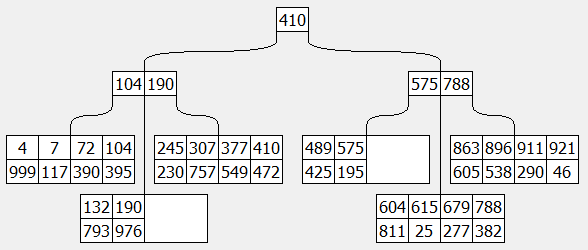
On the top we’ve got a root node (410). This is the KEY. If you look a bit more down, you’ll find 410 once more, but then with 472 under it. 472 is the VALUE for KEY 410. On the left of the root node, you’ll find all keys that are LESS OR EQUAL to the root node. Both 104 and 190 is less than 410. This level is called the intermediate nodes, and on the bottom you’ve got the leaf nodes. So, if we’re for example looking for the key 679, we start at the top. It’s more than 410, and therefore we move to the right. It’s between 575 and 788, therefore it’s in the middle of these. Then there’s only 4 keys to search in till we find what we looked for: 679, and the value is 277.
Now, compare this to our world. If you set an index on three columns, all three of them will be the key in this index. If you add included columns, these will only exist in the leaf node. But, what if you DON’T add included columns in the index. What will then be the value? RID. Row ID. You might have seen “RID lookup” in the execution plan. In the value of the leaf nodes, there’s always stored a RID (and if exists, included columns). This will point it to the correct row in the table. So, the reason for adding included columns is to get rid of the RID lookups. Also, it might be a good idea for covering indexes, since the total amount of bytes in an index (excluding the included columns) can maximum be 900 bytes.
Visit from Jon Jahren
Posted by on April 22, 2009
Mr. Jon Jahren visited us yesterday, and we talked about SQL Server for 4 hours. It was fun, and very informative. I learned A LOT! In this blog I’ll try to sum up the most interesting discussions we had. We had a list of "questions" prepared for him:
– Tuning of (the setup of the) main SQL Server
– Specking new servers
– B-trees
– Mobile sync vs Replication
– Resource Governor
– Reporting Services
Tuning of (the setup of the) main SQL Server
First of all we logged on to the main SQL Server in Omega and started looking at hardware setup, settings on the server, database etc. The hardware setup was as it should be, but he explained a couple of settings that he recommended.
"Boost SQL Server priority". This will, as it says, boost the priority of SQL Server on the CPUs. This should be turned off, because IF the server has some queries running 100% of the CPU you might not be able to log on to the server and kill those processes. He also explained that if we had network related problems, it might be a good idea to uncheck one core pr CPU, to let them deal with OS-related stuff (network). That way, SQL Server will not try to use these cores and therefore not be put in a queue.
Under security on the server, there’s a option called "Enable Common Criteria compliance". This is a security feature that makes SQL Server not only release memory but overwrite memory with white-spaces or similar. Many customers has this as a criteria when setting up SQL Servers, so be aware!
Named pipes should be disabled when you’ve got more than 500 users because this might cause performance issues if there’s more than 500 connections!
When we talked about hardware setup, he reminded us about the problems with RAID5 and said he was a member of BARF(.com)
NB! Before SQL Server 2008 it was recommended to have the same amount of MDF files for the database as you’ve got CPU cores. This no longer applies to user databases, but this still applies to tempdb.
Specking new servers
Fast Track is collaboration between Microsoft, HP, Dell and Bull. This is a sort of standard for specking new servers. The only "thumb rule" we got was CPU cores X 4 = GB of RAM. We should double the amount of memory on our SQL Server.
B-trees
What’s the difference of a column in the index and an included column? First of all, you can’t filter on the included column. The reason they added included columns (or leaf node columns, as Jon wanted it to be called) was that the limit for indexes are 900 bytes. But in some cases you might want to select more than 900 bytes, but only filter on one or two fields.
Mobile sync vs Replication
We talked a bit about the differences between SQL Server Compact Edition and Express edition. CE was actually built with "cloud computing" in mind. CE should only be used as a local cache of data while it’s offline. EE could be used as a subscriber, or as a publisher/subscriber in merge-replication.
Resource Governor
This is a great tool for allocating resource. I’ve now set up a resource pool that restricts backups to only use 20% of the CPU. This means that users will hardly notice when we run backups (especially transaction log in the middle of the day). You can set various restrictions. For example I could make two pools and check for SUSER_SNAME(). If it’s me, then no restrictions, if it’s anyone else, use max 10% of CPU, RAM etc. I bet that would make my queries even faster! 😀
Reporting Services
We’ve changed our reporting engine a couple of times, and I know people are tired of recreating reports. Pr now, Reporting Services isn’t "good enough" for us, but MY PERSONAL OPINION (NB!!!! THIS IS JUST MY PERSONAL OPINION!!!!!) is that when reporting services is good enough, we’ll change to this. SQL Server 10.5 (2008 SP2?) will be released among with Office 14. In this release there will be no big changes to Reporting Services, but the release after this (11… Q2 2011?) will include a lot of changes to the Reporting Services tools. Most of them is actually ready already, but not included. So, no worries. I don’t think we’ll change reporting engine for at least 2-3 years 😉
I mentioned office 14. This will include an application codenamed Gemini. This is excel on steroides. The main goal for this application is to suite the needs of the heavy excel experts out there. With this you can connect to almost any database (dataware house), and play with millions of records in a couple of milliseconds. Looking forward to try this!
BTW! Did you know that the S in SUSER_SNAME() stands for Server?
If you log in to teamdocuments you can download all the files he sent me.
Computed Columns
Posted by on February 11, 2009
You might have heard the expression “computed column” before. If not, it’s an expression used for columns that are computed 🙂 A little more detailed, Field3 may be Field1 + Field2, Field1 * Field2 or similar. This is actually a pretty neat feature in SQL Server. Why? Let’s take a transactions table in an accounting system as an example. We’ve got a field called CurrencyAmount and one field called ExchangeRate. In most cases you want to calculate these as your currency’s amount. Therefore you make a field called Amount, and sets it as a computed column with the following formula: CurrencyAmount * ExchangeRate.
So, in your views, you can just use:
SELECT Amount FROM Transactions
Instead of:
SELECT CurrencyAmount * ExchangeRate AS Amount FROM Transactions
Also, you will always get the correct amount. In some cases I’ve seen people who have made a column “Amount” which was not computed. Then the user has to insert values into all three fields, and this might cause issues. Some users only use the “amount” field, others only the CurrencyAmount etc.
But what about persisted vs non-persisted? Persisted means that it’s stored WHEN SAVING the record. This means that every time you select/filter on the column, it’s picking data from the hard drives. If you’ve got heavy calculations this might be the best thing, but in many cases non-persisted is the best thing. Non-persisted means that it’s calculating Currency * ExchangeRate for each record when you SELECT the record(s). You might think that this is slower, but with the CPUs nowadays, this isn’t a problem at all. The bottleneck for SQL Server is disks, or IO-activity. You (almost) always want to reduce the amount of IO in a query, so next time you make a computed column, take a minute to think about if you want it persisted or not 🙂
And, just for the record. You can only have persisted computed columns in tables. Computed columns in views will always be non-persisted.
SMO
Posted by on January 12, 2009
SQL Server Management Objects is a set of .NET objects from Microsoft. This replaced DMO (Distributed Management Objects) in 2005. You can use SMO to communicate with a SQL Server the same way you do with Management Studio. For example, you can list all tables, script them, find your permissions+++. You even use it to communicate with SQL Server Agent to make jobs etc!
The last days I’ve been working on a little application we’ll use to script over a database automatically. First we’ll delete all a-objects, then we’ll script them in from another database.
I’ve made an example project, so you can see how easy it is. First connect using a ServerConnection, and then setting the gServer. With gServer I can access any object I want on the server. To access a table, you use: gServer.Databases(“YourDatabaseName”).Tables(“YourTableName”)
To generate all my scripts, I’m looping the Script-method on the Tables property. I add a parameter vOptions so I only get what I want (dependent on which checkboxes are checked.
Click here to download the test project.
The how’s and why’s about indexes
Posted by on December 19, 2008
Indexes is a big topic when it comes to SQL Server. I’m going to try to tell you the most basics about it. Hopefully this will help you figure out when and why you should use indexes. First, lets start with the real basics!
Go get some candy, coke and coffee. This will probably be the longest blog I’ve done so far. BUT PLEASE KEEP READING! In SQL Server you’ve got tables which stores data. In my example I have a table called Persons. This will have 5 records. In management studio there’s a VERY NICE FEATURE called “Include Actual Execution Plan”. I’ll use this to show you.
USE tempdb

CREATE TABLE Persons (
	PersonID VARCHAR(8) NOT NULL,
	FirstName VARCHAR(50) NOT NULL,
	LastName VARCHAR(50) NOT NULL,
	EMail VARCHAR(100) NULL,
	ReverseEMail AS REVERSE(Email)
)

INSERT INTO Persons
  (PersonID, FirstName, LastName, Email)
VALUES
  ('StolJens', 'Jens', 'Stoltenberg', 'jens@stortinget.no'),
  ('SolbErna', 'Erna', 'Solberg', 'erna@stortinget.no'),
  ('JensSiv', 'Siv', 'Jensen', 'siv@stortinget.no'),
  ('SponLars', 'Lars' ,'Sponheim', 'lars@stortinget.no'),
  ('NordVida', 'Vidar', 'Nordnes', 'vidar@omega.no')
If I now do a SELECT * FROM Persons, everyone knows the results, but here’s the execution plan:
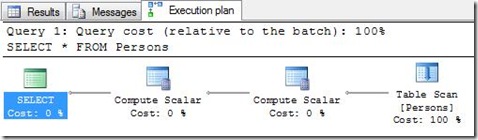
As you see, it’s doing a Table Scan which takes 100% of the cost of this query. A table scan is literally a scan through the whole (or in some cases, parts) of the table. The compute scalar items are there because I’ve got a computed column (ReverseEMail) in my table. We’ll get back to this later.
A table scan is in most cases VERY inefficient, because it has to go through all records with data. If this table had 100.000 records, it would have to go through 20MB of data (8+50+50+100 * 100.000 bytes). Of course, when doing a SELECT * from a table without a where clause, there is no other way than scan the whole table, because you need all data to be returned anyways.
There’s two kinds of indexes in SQL Server. Clustered and non-clustered. Non-clustered is in some ways a table for the table which only stores the values for the indexes columns. In the index there’s also added a rowid field which points to the correct record in the actual table. This way, when seeking the index, it can point you to the correct row in the table after it’s finished seeking. In 2005 you can have up to 249 non-clustered indexes, but in 2008 you can have up to 999! But before you start creating 999 indexes, be aware that indexes also contains data! If you index a column that is a integer, which is 4 bytes, it will be 4 bytes in the table and 4 bytes in the index PER RECORD. So, if you add 999 indexes, this will be 4 * 1000, which is 4000 bytes PER RECORD.
The other type of index is a clustered index. This is the physical (or actually logical, but just think of it as the physical) ordering on the harddisk. So, for instance when I add a clustered index on the PersonID field, it will order the table based on the PersonID field. The clustered index will have the other fields as datapages in the index, but the indexed field (PersonID) will be on the leaf node. I’m not going in to details about this, but if you’re interested, have a look at the definition of a B-tree. Anyhow.. Since the clustered index is the physical ordering of the actual values, so therefore a table can only have ONE clustered index. NB! If you have a clustered index on a table, you’ll never get a Table Scan. You’ll get a Clustered Index Scan, which is the same.
If we think of a table as a book, we’ve got the clustered index in front (Table of contents) of the book, having a sorted list (by chapters 1, 2, 3) of the content with pointers to the actual data (the page of the book). At the end of the book, you’ll find the non-clustered index. This is a index on the “word” field in our table. The word is sorted ascending with a pointer to the page, so the word “Assembly” might be found in pages 15, 19 and 333, and the word “Binary” might be found at page 16.
So, now we’re adding a clustered index to the PersonID field, and a non-clustered on the LastName column. This makes searching on LastName faster for the server, because instead of using a table scan (or clustered index scan), it can use the index to look up the values.
ALTER TABLE Persons
	ADD CONSTRAINT PK_Persons
	PRIMARY KEY CLUSTERED (PersonID)

CREATE NONCLUSTERED INDEX IX_Persons_LastName ON Persons (LastName)

SELECT PersonID
	FROM Persons
	WHERE LastName LIKE 'S%'
Before taking a look at the execution plan for the select statement, let’s guess what it will do. First it will look at the Persons table to see if there’s any indexes on LastName. There is (IX_Persons_LastName). It will seek this for ‘S%’ and then do a lookup to the clustered index to get the PersonID.
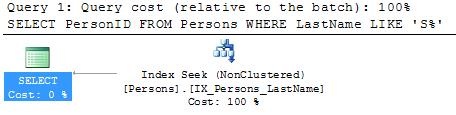
TRICKED YOU! 😀 It’s only using a Index Seek on IX_Persons_LastName. But, where does it get the value of PersonID? From IX_Persons_LastName, of course. The reason is that if you have a table with no clustered index, it will add a RowID field to the table, and use this in all non-clustered indexes to keep them “in sync”. But, if you do have a clustered index, it will use this field (PersonID) as the RowID. That’s why it’s only using the non-clustered index.
Now, let’s do another query:
SELECT PersonID
	FROM Persons
	WHERE LastName LIKE '%berg'
We’re only getting the PersonIDs for those that have a LastName ending with “berg”. If we look at the execution plan, we’ll see that now it’s using a Index Scan, instead of an Index Seek
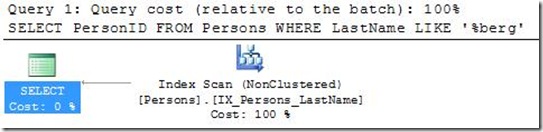
Index scan is just as bad as a table scan. It has to search the whole index to find the records it’s looking for. Let’s take the book as an example again. Find a book, go to the index in the back of the book and try to find all words ending with “ing”. If your book of choice is a computer book, you’ll eventually find at least “designing”, “hacking” and “implementing”. This will take some time. If you then try to find all words starting with C, you know where to start, and where to end. You know that you have to start after the last word that starts with B, and you know you have to stop when you hit D. This is the difference between a seek and a scan. But, what if you often have to find things that ENDS with something? Do you always have to do a index scan? No. As you might remember, I added a field called ReverseEMail to the table AS REVERSE(Email). This is a computed, not persisted field. This means it’s computed on the fly, and therefore not stored to the actual database. If we add an index to this field:
CREATE NONCLUSTERED INDEX IX_Persons_ReversedEmail
	ON Persons (ReverseEMail) INCLUDE (FirstName)

SELECT FirstName
	FROM Persons
	WHERE ReverseEmail LIKE REVERSE('%stortinget.no')

SELECT LastName
	FROM Persons
	WHERE ReverseEmail LIKE REVERSE('%stortinget.no')

SELECT LastName
	FROM Persons WITH (INDEX(IX_Persons_ReversedEmail))
	WHERE ReverseEmail LIKE REVERSE('%stortinget.no')
Now let’s have a look at the execution plan again for these three select statements:
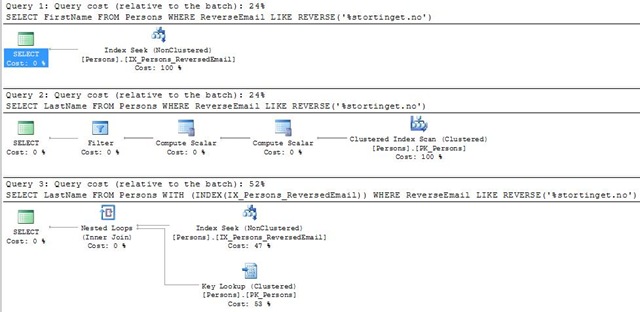
Notice when I’m creating the index I’m doing it on the ReverseEMail field, but I’m also including the FirstName. INCLUDE was introduced in SQL Server 2005. This means that it includes the data for this field in the datapage, but not in the leaf node. In other words, you can’t filter on it but you can select it out of it.
In the first query you see it’s only using a index seek on IX_Persons_ReversedEmail, because it’s got everything it needs in that index. In the second query we select LastName instead of FirstName, which is NOT included in the index. Then the query optimizer figures out it’s faster to do a clustered index scan instead of using the index we created, because it needs to go in to this anyways to get the LastName. If we had more records it would probably not do this clustered index scan. In the third query I’ve used a table hint where I’m forcing query optimizer to use the index I created. Then it’s doing a Index Seek on the ReverseEmail field, and then doing a key lookup per record to the clustered index. As you see from the Query cost (relative to the batch) this is 52%, compared to 24% for the others. That means that even though you might think it’s quicker to use the index we just created, it’s actually not. Be aware, although all reasonable logics says that you’re correct, SQL Server might take an alternative route. When you execute a query, it uses a couple of milliseconds to calculates the best way to execute this query. If your statistics are up to date (I might write a post about statistics later), it’s very likely that SQL Server will be better than you to pick indexes to use 😉 So, keep your statistics updated and do not mess with table hints unless you really know what you’re doing! If you are interested, I’ll write a post about statistics, and one more detailed about execution plans. Please let me know!
So, to our conclusion. SQL Server IS smarter than you when it comes to picking the best execution plan. GET USED TO IT! 🙂 Create indexes on fields that are often used for filtering. If you use GROUP BY or ORDER BY, you should consider adding a clustered index to that (or those) field(s).
Marry Christmas everyone!
SQL Server 2005 SP3
Posted by on December 17, 2008


 Blog ala Vidar