Blog ala Vidar
SQL, AppFrame and other cool technologies
Tag Archives: Microsoft
PDC
Posted by on November 22, 2009
The Professional Developers Conference is Microsoft’s conference for developers (as you probably figured by the name). PDC is normally held around big releases, like this years Windows 7. Windows Server 2008 R2 was also released this year, and next year (hopefully first quarter) SQL Server 2008 R2, Visual Studio 2010, Office 2010 and .NET 4.0 will be released. I would love to be at the conference this year, but I’ll hope to go next time. Anyhow, the videos of all sessions have been published now, so go get them here!
Microsoft Security Essentials
Posted by on October 5, 2009
A couple of days ago Microsoft released MSE (Microsoft Security Essentials). This is a FREE anti virus and malware application. I have been using the beta version for several months now, and I’m very happy with it. It auto updates, scans your computer and checks everything you download from the internet without bugging you with “You need to update…”, “Your computer was just scanned for viruses” etc. It’s very light weight so it doesn’t steel your computers performance like F-Secure and other AVs.
I was curious about if this actually was as other AVs, so I found a couple of viruses and downloaded them. Surely, right after I was finished downloading them, MSE said that it had found viruses and that it was going to clean my computer. Two minutes later it said it had cleaned my computer. Awesome! So, what are you waiting for? Uninstall your slow AVs and install MSE. Remember that even though you’ve got AV, you still need to think logically when surfing!
Download NDC 2009 videos
Posted by on August 29, 2009
The videos of all sessions at NDC (Norwegian Developers Conference) 2009 is now available through a torrent. Illegal? Nope! They’re publicly available. Please add comments with your recommendations. I know I will…. And please seed when you’re finished downloading!
http://blogs.msdn.com/grothaug/pages/downloadable-ndc2009-videos.aspx
Virtualization
Posted by on August 1, 2009
This is a very popular topic in the IT industry nowadays. Some believe it’s because of the global warming “wave”, but I tend to think it’s more than just that. Let’s dive into it!
My first meeting with this technology was about 8-10 years ago. I was running Linux, but wanted to have the possibility of also using Microsoft applications without having to do a reboot. I installed VMware and created a virtual machine inside it running Windows. I also remember the IT administrator at high school telling me that another high school was running Linux with multiple VMware machines, running Windows Server.
So, what is virtualization? According to Wikipedia, virtualization is “a broad term that refers to the abstraction of computer resources” and a virtual machine is “a software implementation of a machine (computer) that executes programs like a real machine”. I would describe it as making it possible to utilize more of the physical hardware available. Virtualization is a broad term, and is used for Application Virtualization (remote desktop-like) etc, but we’ll focus on hardware virtualization in this blog post. In fact, most of the servers out there are idling most of the time. I’m not thinking of the servers hosting Microsoft.com, Google.com etc but any other not that heavily used. In Omega we’ve got about 20-25 physical servers. What do they do? Domain controllers, DNS, mail, database, backup, web etc. Between 8 and 16 there’s some load on these servers, but how much of the actual hardware do you think is being used when most of Omegas employees are at home? Why should they then use the same amount of power, producing the same amount of heat etc as when we’re actually working? A couple of years ago we bought our first “hosting server”. If I remember correctly it was running 8 CPU cores and 16GB RAM. We installed VMware on this to run our test-servers in the technology department. In here we had our own Domain controller, web servers etc. After a while we bought several “hosting servers”, and now we’ve converted all of them to Hyper-V, Microsoft’s virtual servers. Today we got over 20 virtual servers. Most of them are test-servers, like SQL, web, XP (to test IE6) etc, but also some production servers. There are several reasons why we do this.
- Reduce the cost of having to buy multiple servers.
- Less power consumption which leads to less head and lower electrical bills.
- Less administrative work because we can log on to the physical box if a virtual server crashes, instead of going to Ølen in the middle of the night to reboot a computer.
- Enables us to add more “juice” if needed
You might think “isn’t this like putting all your eggs in one casket? Well, yes and no. Of course, many of the servers are running on the same hardware, so if one physical server crashes we got a bigger problem than if one of them crashed as a physical server. But, the quality of these servers tend to be much better than cheaper servers, and we’re able to run RAID10 on all servers, so if one disk crashes, the server’s still running. Also, in Windows Server 2008 R2 there’s a new feature called “live migration” which enables you to automatically move virtual servers between the hosting servers.
So, what should run as virtual server and what should still be on “bare metal” (physical box)? SQL Servers with heavy load should not run as virtual servers, because of the heavy disk IO. SQL Server love RAM, you should feed it like a hungry baby. AD controllers and exchange servers should also run as physical boxes, but there’s no reason why for example web-servers should run on physical servers. By the way, did you know that Omega only runs web servers on virtual servers? For example, TeamDoc have been running on a virtual server for several months.
I’ve had several discussions with people that are skeptical to virtual servers, and I do understand them, but remember one thing. If you have ordered a 2 CPU server with 4 GB RAM, and suddenly figure out that this server isn’t good enough. What do you do? Well you probably have to order a NEW server because 32 bit servers only support 4 GB RAM. You would have to go for one new motherboard, CPUs, more RAM etc. What would you do if it was a virtual server? You’d call the administrator: “could you add 2 GB more RAM to my server? And while you’re at it add 2 more CPU cores.” The administrator then would go into his Hyper-V manage, right click the server. Shut down. Right click it again, Settings and add more RAM and CPU, and then start the server. It would take about 2 minutes compared to ordering a new server from Dell, which would take about 2 weeks, and would cost A LOT more. When we create new virtual servers, we normally add 1 CPU and 1 GB RAM. Then, if needed, we add more and it would only take a couple of minutes. Shouldn’t that be the way to go?
Btw, did you know that most of Microsoft.com, TechNet and MSDN are running on virtual servers?
Hidden Windows 7 features
Posted by on July 15, 2009
I’ve been listening to RunAs Radio a lot lately, and I’ve picked up a couple of new cool things. The last podcast I heard was about “hidden” features in Windows 7.
PSR (Problem Steps Recorder)
A very simple application that allows you to record your steps. This will be great for you when you can’t reproduce an error a user gets. Just tell the user to start recording, then reproduce the error and stop recording. The application will create a zip-file with a MHT file inside with screenshots, OS information+++. You should try it out!
Default printers
Notice the S at the end. If you go to “Devices and Printers” you can click on the “Manage default printers” button. Here you can set up your home printer to be the default printer when you’re connected to your home network, and an other when you’re connected to your work network!
Bit locker to go
This is a really good security thing. By group policies you can force the user to encrypt USB-sticks etc when they connect them to their computers.
Direct Access
This will sort out MUCH of the VPN problems. By using Windows 7 and Windows Server 2008 R2, you can connect to any (public) network, and it will create a VPN connection to your work network, without the user having to do anything except connecting to the public network.
Branch Cache
With Windows 7 and Windows Server 2008 R2 you can now set up a branch cache on all your offices as a file cache. If a user at a branch office downloads a file from the main office, it will download the file from the main office. If a second user tries to download the same file (from the main office), it will automatically download it from the first user (in the same branch office) that downloaded this file. Pretty neat!
Aero Shake
If you have several windows open, you can “shake” one of them and the others will be minimized
Windows 7 RTM
Posted by on July 6, 2009
Most of you already know that the release of Windows 7 is near. If you haven’t heard, you should really consider reading the news more often 🙂
RTM (release to manufacturing) is now confirmed to be released 13th of July to MSDN and TechNet subscribers. GA (General Availability) is set to 22nd of October. Norwegian version will be released 31st of October.
I’ve been using Windows 7 since the first beta version and I’m very fond of it. There’s only one bug that’s annoying me at the moment, and that is related to running the laptop on battery. I’m really looking forward to the release, and hope most of you will convert as soon as possible so we can get rid of old operating systems and browsers (XP, IE6 etc).
Live Mesh
Posted by on January 18, 2009
Microsoft released Live Mesh (beta) to the public April last year. I’ve only been using it a couple of days, but I wish I had noticed this before! On www.mesh.com the slogan is “Sync, share, and access the information you care about – wherever you happen to be.”. I think this explains most of it. Live Mesh is a service from Microsoft that you can connect to either using your browser (from anywhere in the world), or using an application installed on your PC. If you install this application, it integrates with windows explorer. All Mesh-folders have a blue folder-icon. If you got a folder you want to share with mesh, you just right-click it and choose “Add folder to Live Mesh”. You can also add permissions on this folder so your friends can get access to it. I’ve tested this with a folder I call “VS projects”. On my spare time I’ve been working a bit with an IRC client. I wanted to share the source code with Jan Leon, so I gave him permissions to the folder, and 30 seconds later, he had it on his desktop without doing ANYTHING. Live Mesh did the synchronization automatically.
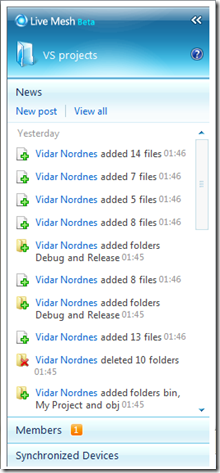
On all folders you’ve got a little extra window on the right. There are three tabs. News, Members and Synchronized Devices.
On News you can see all information about the folder. Who added or deleted which files. New members of the folder etc.
In the Members tab you can see who’s got permissions to this folder and what permissions the user got. As long as your friend got a live-address (for use with MSN or similar), you can add your friend to this.
On the Synchronized Devices tab you can see which computers (and sites) are connected to this folder at the moment, and where your changes will be synchronized.
I’m now using this for backup. I’ve only got a couple of documents I don’t want to loose. Nothing confidential, just a lot of work to redo if lost.. All other files and applications can be downloaded from the internet, so no need to worry there.
On News you can see all information about the folder. Who added or deleted which files. New members of the folder etc.
In the Members tab you can see who’s got permissions to this folder and what permissions the user got. As long as your friend got a live-address (for use with MSN or similar), you can add your friend to this.
On the Synchronized Devices tab you can see which computers (and sites) are connected to this folder at the moment, and where your changes will be synchronized.
I’m now using this for backup. I’ve only got a couple of documents I don’t want to loose. Nothing confidential, just a lot of work to redo if lost.. All other files and applications can be downloaded from the internet, so no need to worry there.
NB! Be aware that there are a limit on the size of your folders. It’s about 5GB, so you shouldn’t worry too much.
Windows 7
Posted by on January 11, 2009
About 24 hours ago I started installing Windows 7 Beta 1 (build 7000). First I tried upgrading my Vista installation. After about half an hour with extracting files etc, it stopped at 21%, wanted to reboot. After the reboot, it started at 21%. In the mean time I was playing drums on Guitar Hero World Tour. My neighbors HATE it. It doesn’t take more than two minutes before they start hammering on my door etc. Anyhow.. It still was at 21% so I went to bed. Haven’t slept much lately… When I woke up, it was still at 21%, so I decided to cancel the upgrade, and do a fresh install. Rollback worked perfectly, so I managed to get into my vista installation to copy out the files I “needed”.
Bug 1: upgrade didn’t work
Fresh install didn’t take long. Immediately after it was finished, I started installing all my usual applications. MSN, Visual Studio, SQL Server +++. The only thing I have had problems with so far is daemon tools and similar applications. For those of you that are not familiar with this, it’s a tool to mount ISO-files like a virtual CD/DVD-ROM. After a while I found one that works pretty good: Virtual CloneDrive. If you got any other program to do this, which is FREE (as in free of charge, don’t care if it’s open source or not), and does ONLY mount files, not all the other bullshit like Nero etc, please let me know…
After installing everything I needed, I started exploring the new features. There’s actually some very nice features, but we’ll get back too them soon. I first want to notify you about the other bugs I’ve found.
Bug 2: problems with restarting
After windows update, windows wanted a restart. I pressed “restart” and went over to my mom to have dinner etc. 6 hours later I came back home and noticed the “shutting down” screen. I of course used the power button, and restarted it again. The same thing happened the next restart. Although, I didn’t have this problem the last restart. Have no idea why though. I haven’t started looking at logs yet.
Bug 3: windows explorer stops working
Have no idea what happened, but suddenly windows explorer couldn’t find any of my hard disks. I tried killing explorer.exe and starting it again, without success. I’ve had this problem in XP before, but then it normally works fine after killing it. Restarting worked though, as always 😉
These are the “only” bugs I’ve found so far. I’m a multitask-dude, so I always install several programs at the same time, while doing hundreds of other thing. Windows 7 seems to have no problem with this. I’ve had various problems with this in both XP and Vista.
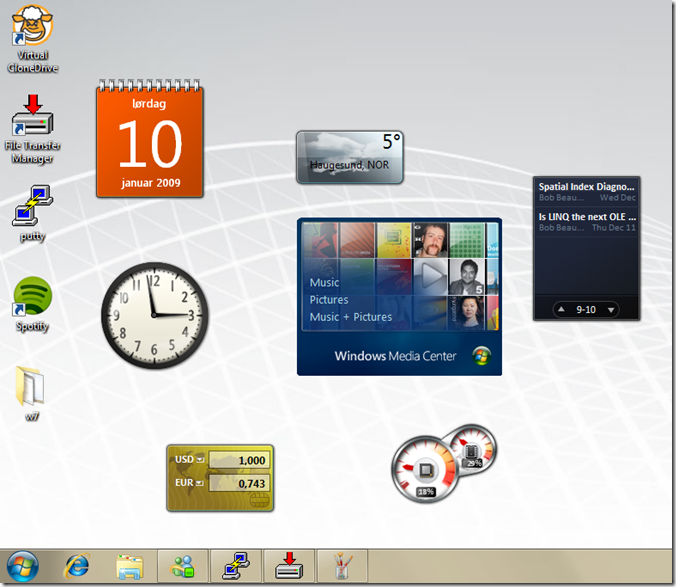
So, over to the new features. Most of your are probably familiar with “gadgets” in Vista. In Windows 7 you still got gadgets but they’re not locked to the sidebar. You can drop them wherever you want on the screen (as shown on the screenshot). This is of course just to show you. I normally don’t use any gadgets 🙂
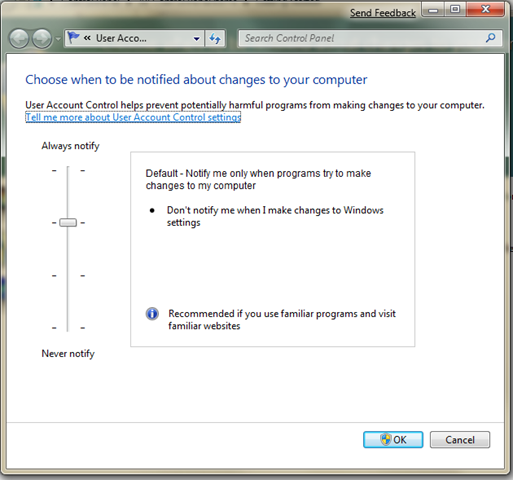
UAC (User Account Control) is something that have annoyed many people in Vista. I think UAC is a good idea, but it should warn you about things that really matter, and not EVERYTHING you do. I myself have set it to the “Shut up and let me do what ever I want because I (think I) know what I’m doing“-mode. In Vista there was only on and off, but in Windows 7 there’s 4 settings.
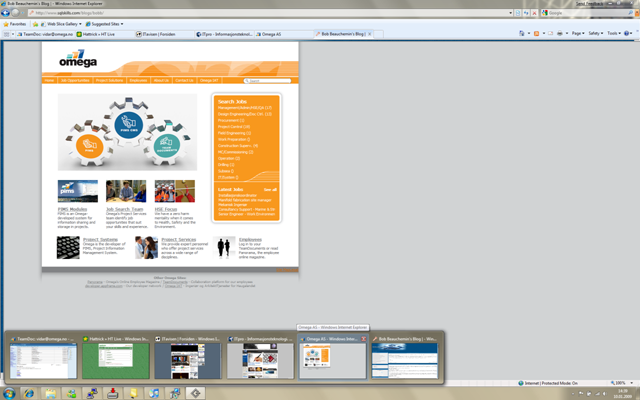
One of the features I’m a big fan of is the new taskbar. Instead of having a taskbar just for opening applications, you can now hover for example the IE-icon, and then get a preview of all your tabs. If you click any of them it opens IE in the correct tab. This also includes all other applications. By using the right-click option “pin this program to taskbar”, you can add applications to it. I’ve pinned putty (which is a SSH-client). If I click it, and the application isn’t opened, it will start it. Pretty neat, especially with the preview functionality.
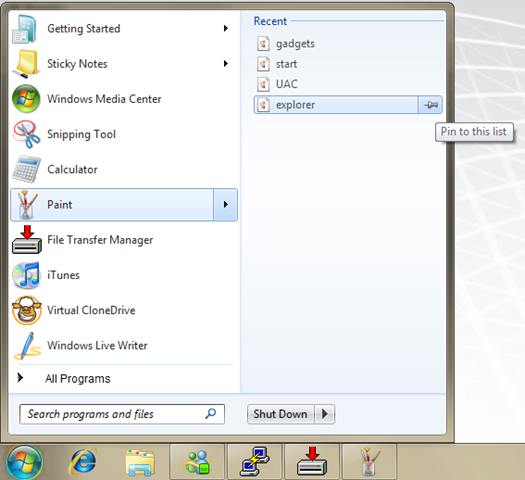
You also got this “pin” functionality in the start menu. Nice if there’s for example documents you need to add to some kind of favorite list or similar.
Another cool feature is the window management. If you’ve got several windows open, and you “shake” one of them, it will minimize all other windows. If you shake it ones more, it will restore the other windows. You can also dock windows by just moving them around. If you move the window to the left of your screen, it docks the window to 50% of the left. If you move it to the top of your screen, it maximizes it.
This is the biggest changes I’ve seen compared to Vista. There’s also a lot of small changes, like the action center which notifies you if there’s something wrong. For instance before I installed an antivirus application, it said I had to do it. It doesn’t popup and it isn’t annoying in any way. It’s just a red flag waiting to be clicked on.
They’ve also included “Send feedback” on all windows. This automatically connects to http://connect.microsoft.com and reports issues by itself.
Windows PowerShell
Posted by on November 12, 2008
I like calling it POWAH shell. The reason is simple. It’s (almost) everything I miss from my good old Linux-days. When I first started managing windows servers, I couldn’t find anything. Same thing goes for Vista. When I first started using it, I couldn’t find any settings, because Microsoft has made it so user friendly. That’s great, till you’re for example trying to use wildcard-mapping in IIS7. THAT’S NOT EASY IN UI! It’s 5 lines of code in web.config, but it’s very hard to find in the UI.
So, what I’ve been missing is a real good console configuration tool, where you can do everything you want from console. Now I found it. After playing with it for a couple of hours, I’m convinced! This is POWAH shell!
A very cool thing about POWAH shell is that you’re working with .NET objects, and not "stupid" strings like in Linux. Of course, this works just fine, but here you can do basically the same things as you would have done in a .NET application. Let’s make an example. We want to know how much free space all disks on all our servers have. Without powershell, I have two ways of doing this. Either make an application for it, or log on remote desktop. With powershell you just do this:
foreach ($server in Get-Content "C:\powershell\servers.txt")
{
    $server;
    Get-WmiObject Win32_PerfFormattedData_PerfDisk_LogicalDisk -ComputerName $server |
        Where {$_.Name -ne "_Total"} |
        Select Name, PercentFreeSpace, FreeMegabytes |
        Format-Table
}
In c:\powershell\servers.txt I have added one line per server. This is 3 lines of code! Since I’m managing a total of about 15-20 servers, this saves me ALOT of work!
The result I get is:
MyServer
| Name | PercentFreeSpace | FreeMegabytes |
| C: | 83 | 116757 |
| D: | 96 | 270806 |
| E: | 99 | 139761 |
If I change the last “Format-Table” to “Format-List” I get this:
MyServer
| Name | C: |
| PercentFreeSpace | 83 |
| FreeMegabytes | 116757 |
| Name | D: |
| PercentFreeSpace | 96 |
| FreeMegabytes | 270806 |
| Name | E: |
| PercentFreeSpace | 99 |
| FreeMegabytes | 139761 |
I’m using the Win32 API to connect to the server, filtering where the name of the disk is Not Equal (-ne) to _Total (which is all disks combined) and then selecting the fields I want to output.
Another good example would be to check that our SQL servers are running the SQL services, and NO IIS. Same goes to our web servers. No SQL Services, but IIS should run. To do this, you can execute:
foreach ($server in Get-Content "C:\powershell\servers.txt")
{
    $server;
    Get-WmiObject win32_Service -ComputerName $server |
        Where {$_.name -eq "MSSQLSERVER"
            -or $_.Name -eq "SQLSERVERAGENT"
            -or $_.Name -eq "SQLBROWSER"
            -or $_.Name -eq "IISADMIN"} |
        Format-Table
}
This will return a table for each server, with the the services I’ve filtered on (MSSQLSERVER, SQLSERVERAGENT etc), the state and the status. If we want, we can add a pipe (|) and a Select so it only returns the columns we want.
The third script I’ve made is to check all SQL Servers Jobs, if any jobs failed last time they were executed:
[reflection.assembly]::LoadWithPartialName("Microsoft.SqlServer.Smo") | out-null

foreach ($srv in get-content "C:\powershell\servers.txt")
{
    $srv;
    $server = New-Object "Microsoft.SqlServer.Management.Smo.Server" "$srv"
    $server.JobServer.Jobs |
        Where {$_.LastRunOutcome -eq "Failed"
            -and $_.IsEnabled -eq $TRUE} |
        Format-Table Name, LastRunOutcome, LastRunDate -autosize
}
Notice, we’re “loading” the Microsoft.SqlServer.Smo assembly. This is a .NET assembly which we’re using later on. For each server we’re making a new object $server, and accessing the JobServer.Jobs, filtering where LastRunOutcome equals “Failed” and that it is Enabled.
You can also open a SQL connection, run SQL statements and handle the results in POWAH shell if you want. There’s almost no limits! There are still some things I’m missing, but I’m sure they’ll add it in the next versions. After all, this is only version 1! Good job Microsoft!
Windows Home Server
Posted by on September 8, 2008
First time I heard about Windows Home Server was from Øystein. He was praising it like it was a new god or something. Of course, I was sceptic. Microsoft making a server for home usage? That’s THAT easy to use? BULLSHIT, I thought! A couple of months later, I went to MSDN in Stavanger, where I got a 180 days trial of it (because I’m a member of NNUG ;). I thought I could at least try it out. That ended my sceptic thoughts. 3 clicks to install the server. Everything was setup by it self. Then, put a CD in all my computers (at that time, “only” three). One click on each, and the backup of them was setup. IS IT REALLY THAT EASY? you might think. It’s easier! It’s a wonderful product. I have admitted to Øystein that I was wrong.
The main thing about Home Server is to take backup of your computers. You can configure it to keep your backups as long as you want, so if your computer crashes for some weird reason, you can just put in a CD and it will restore to what every point in time you want it to. I haven’t tested this yet, but Øystein did have to do this. It worked perfectly. You don’t need to restore the whole computer. You can restore one file if you want!
Another cool thing is the “shared folders”. All computers in your network will get a shortcut on your desktop to your shared folder on the server. You can have private folders (for your user), or you can have shared folders. This makes it much easier to share files between computers at home. You’ll always have your photos, music and videos one click away, on all your computers. One bad thing about Home Server is that it doesn’t support RAID. I found out this when I was installing the real version (not trial) after 100 attempts. I had tried almost a whole weekend to install it on 3 different RAID-controllers, with different discs.. It installed ok, but when I booted it, it gave me bluescreen. I called Øystein and he said: “Try not using RAID” 😛 Why didn’t I think of that?! You might think that without RAID you don’t have a good server. Well, not exactly. You can easily right-click a folder (inside the home server management console) and click “Duplicate”. This will ensure that your folder is duplicated to more than one disk. One of my disks actually crashed a couple of hours ago. Luckily I’m using “duplicate” on all my important stuff, so I just unplugged the hard disk and the server is up and running again! When you plug in new hard disks you get two options. Add to share, or use for backup. If you add it to your share it will just extend the capacity of your share. If not, it will backup your important files, so you can unplug it and put it in a safe or similar. Very nice feature!
Conclusion: If you have several computers in your home, and do not have backup of anything, it’s a very good solution. It’s also very nice for sharing files between computers at home.


 Blog ala Vidar